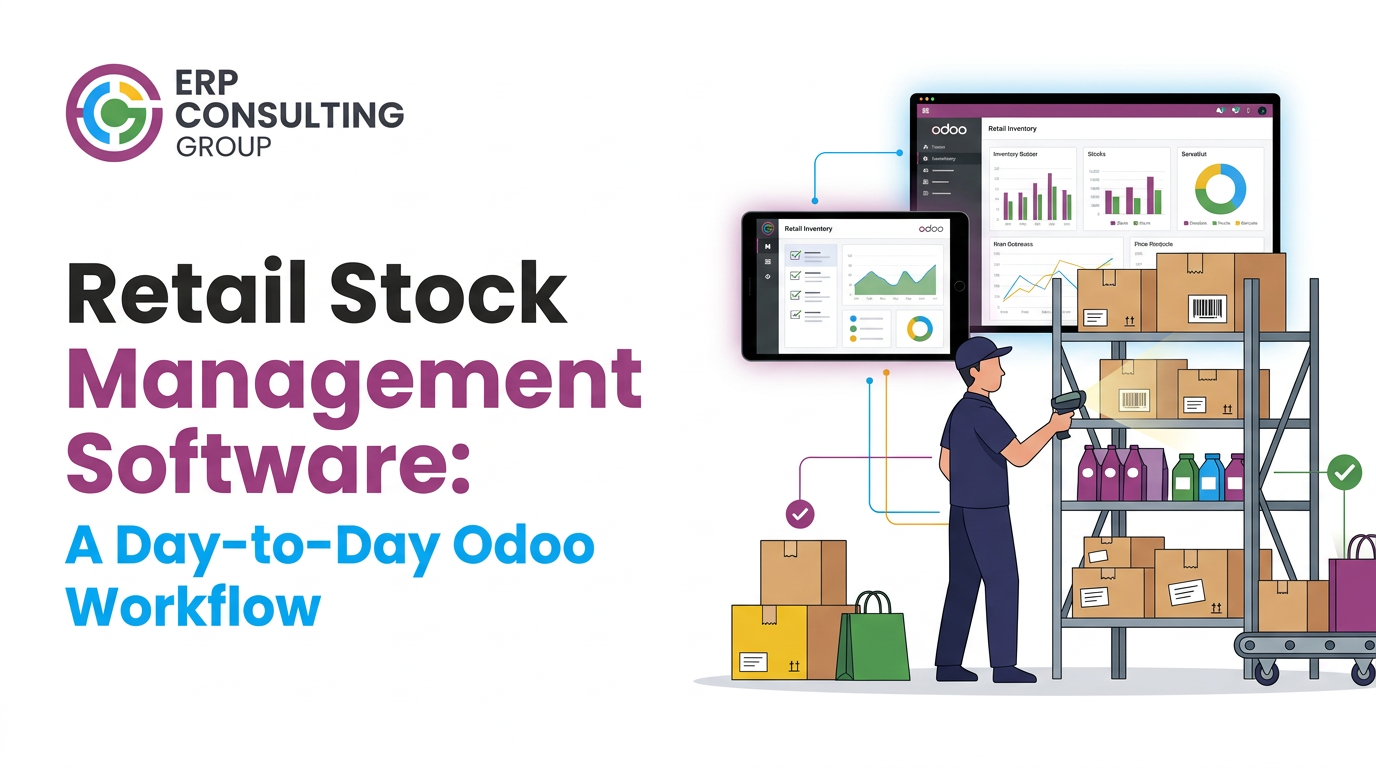
Retail work is rarely hard because of one big problem. It is hard because of many small ones that repeat every day: a delivery that nobody can match to a purchase order, a product that shows as available but is not on the shelf, a cashier's total that does not match the till. When billing, inventory and reporting run in separate tools, someone has to find each gap and fix it by hand.
Retail stock management software closes these gaps by connecting billing, stock and reporting in one system. With Odoo, a sale at the counter updates stock, a stock movement shows up in reports, and every store works from the same numbers. At ERP Consulting Group, we help retailers set up and manage Odoo around exactly these day-to-day workflows, and you can see how this fits different store formats on our Retail Industry page.
This guide walks through a normal retail day and shows how each task can be handled in Odoo, which settings matter, and where stores usually go wrong. If you are still deciding whether Odoo suits your business, start with Odoo for Retail: Features and Fit, then come back here to see how the system works once it is running.
Menu names and options vary slightly between Odoo versions, so check them against your own setup.
What Is Stock Management in Retail?
Stock management in retail is how a store records, tracks and replenishes the products it sells, from the moment goods arrive to the moment a customer buys them. It covers receiving stock, counting it, moving it between locations, reordering, and keeping the system's numbers matched to what is on the shelf. When billing and stock sit in separate tools, those numbers drift apart. A retail stock management system connects them, so every sale and every transfer updates the same record.
A Day in a Retail Store on Odoo
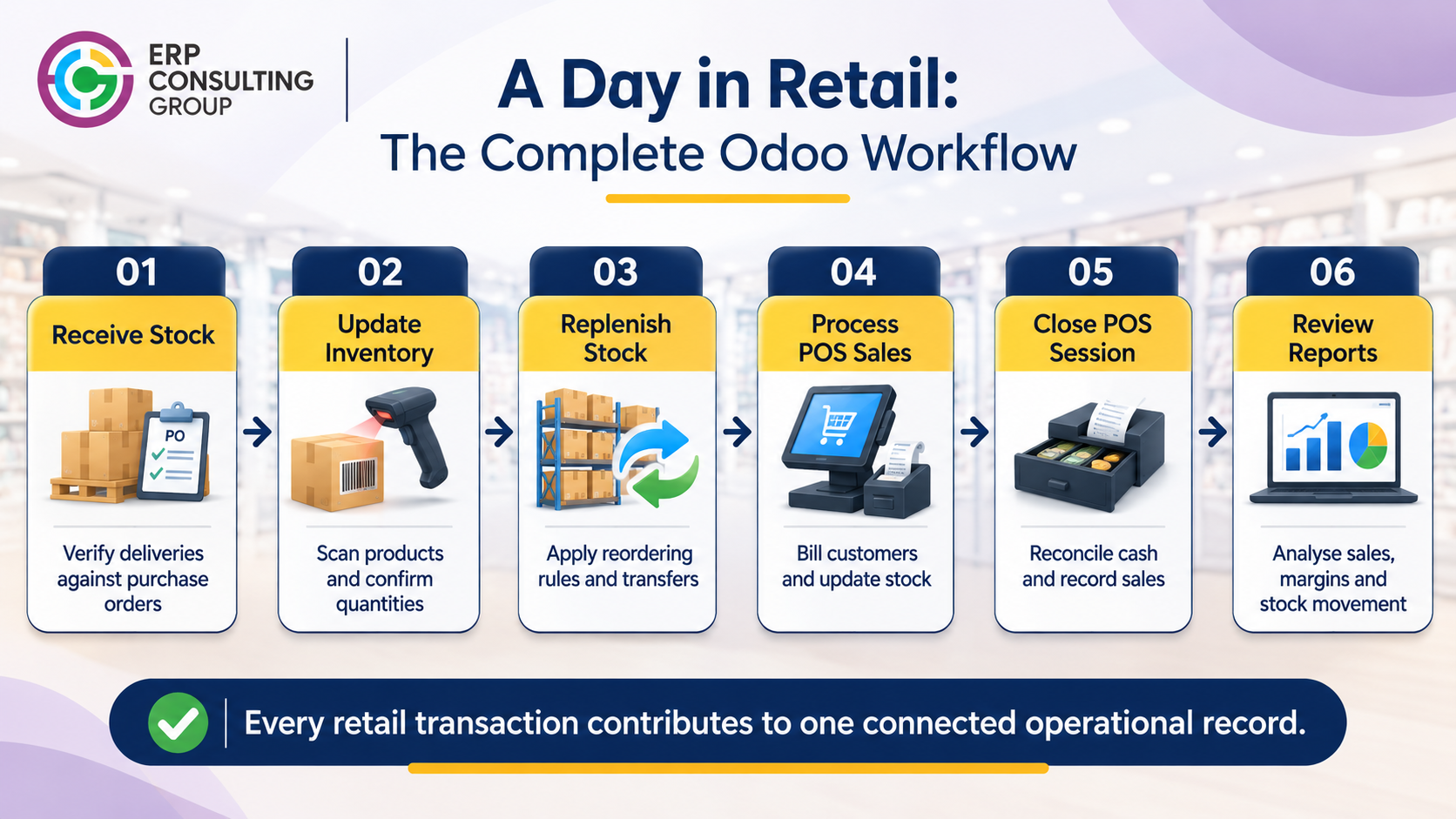
Here is the daily cycle we configure most often for single-store and multi-store retailers:
Time of day | Store task | Odoo app involved |
Morning | Receive deliveries and check them against purchase orders | Purchase, Inventory |
Morning | Check low-stock items and request transfers from other stores | Inventory |
Opening | Open a POS session and count opening cash | Point of Sale |
Trading hours | Sell, apply discounts, handle returns | Point of Sale |
Closing | Count cash, close the session, review the session report | Point of Sale, Accounting |
Weekly | Review sales, margins and stock movement | Reporting |
The value comes from each step feeding the next. A receipt updates stock, stock drives replenishment, sales reduce stock, and the closing session feeds accounting.
1. Receiving Stock Without Guesswork
Stock errors usually start at the door. If receiving is done on paper or from memory, the system never matches the shelf.
How it works in Odoo
- A purchase order is confirmed in the Purchase app, which creates an expected receipt in Inventory.
- When the delivery arrives, staff open the receipt and confirm the quantities they actually received.
- With the Barcode app, staff can scan products instead of typing, which cuts mistakes and speeds up large deliveries. For the module in detail, read What is Odoo Inventory?
- If only part of the order arrives, receive the partial quantity and keep the rest as a backorder.
Where stores go wrong
- Receiving against nothing. Staff add stock manually instead of using a receipt, so there is no link to the supplier bill later.
- Skipping product barcodes during setup, which forces manual entry on every delivery.
- Not recording damaged or short-shipped items at the time of receipt, which makes supplier disputes hard to prove.
Setup tip: Clean your product data before go-live. Consistent names, barcodes, units of measure and categories save more time than any feature.
2. Replenishing Stores Before Shelves Go Empty
Stockouts cost sales, and overstock ties up cash. Odoo gives you two practical tools to manage both.
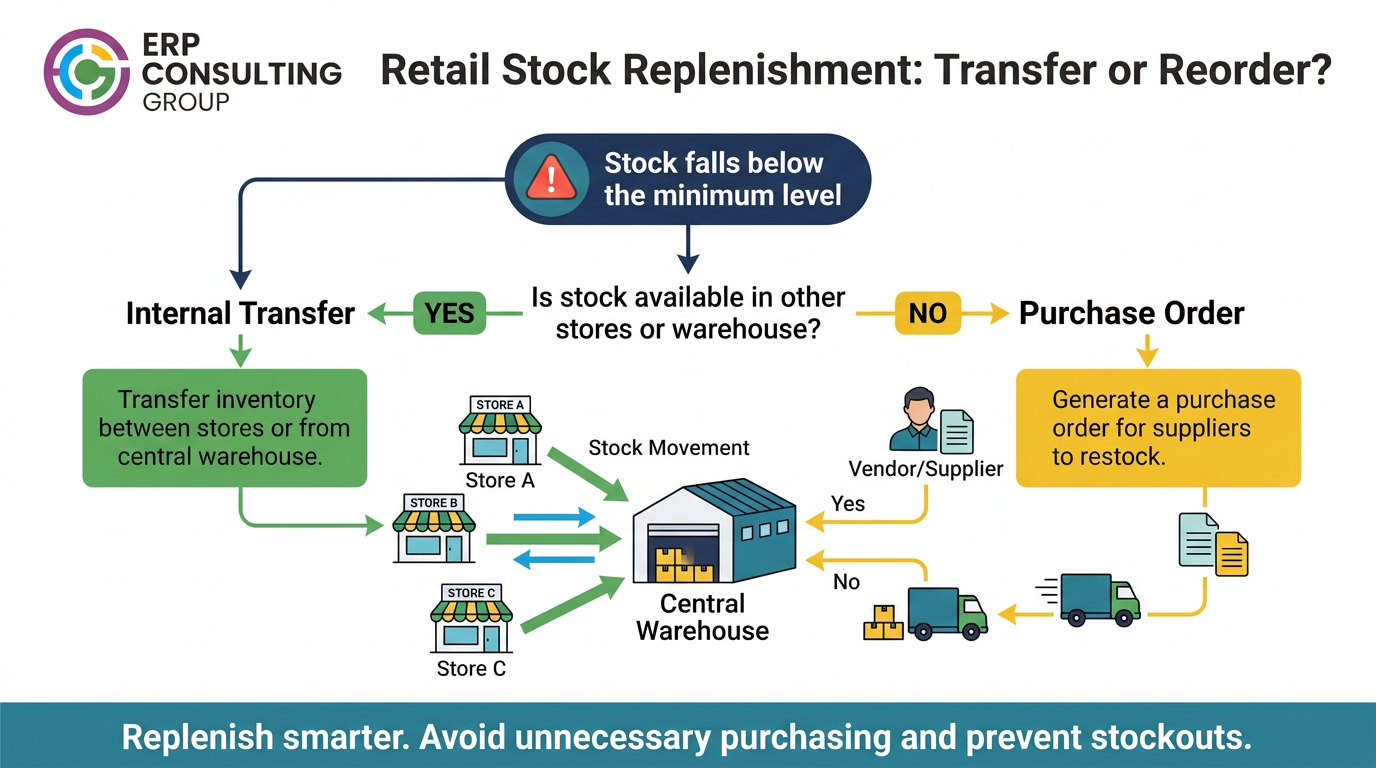
- Reordering rules set a minimum and maximum quantity for a product. When stock falls below the minimum, Odoo can flag it or create a purchase order or transfer, depending on how you configure it.
- Internal transfers move stock between stores or from a central warehouse to a store, so one location's surplus covers another's shortage and both counts stay correct.
Illustrative example (not a client case): A fashion retailer has three stores. A popular jacket sells out in Store A while Store C has six in stock. Instead of reordering from the supplier, the manager creates an internal transfer from Store C to Store A. The reordering rule on the main warehouse triggers a supplier order only if total stock is truly low.
Where stores go wrong
- Setting the same minimum for every product. Fast sellers and slow sellers need different thresholds.
- Never revisiting reorder levels after the season changes.
- Not checking lead times, so the reorder triggers too late to prevent a stockout.
If you also sell online, see how the Odoo Shopify connectorand ouromnichannel setup keep online and in-store stock aligned.
3. Opening and Closing POS Sessions Properly
The session is the backbone of retail control. Every sale belongs to a session, and every session ends with a reconciliation.
At opening
- The cashier opens a session and, if cash control is enabled, records the opening cash in the till.
- Each cashier uses their own login, so sales are traceable to a person.
During the day
- Sales deduct stock in real time from the configured location, with no separate entry.
- Discounts and price changes follow the rules and user permissions you set, such as limiting who can override a price.
- Odoo POS is designed to keep working through short internet outages and sync when the connection returns. Behaviour depends on your version, hardware and payment methods, so test it in your own setup before go-live. For food and beverage, see our blog on Odoo POS for restaurant management.
At closing
- The cashier counts the cash and enters the closing amount.
- Odoo shows the difference between expected and counted cash, so shortages are visible the same day.
- Closing the session posts the day's sales to Accounting, so the finance team does not rekey takings.
Where stores go wrong
- Leaving sessions open for days, which delays accounting entries and hides cash differences.
- Sharing one login between several cashiers.
- Ignoring small daily cash differences until they become a pattern.
4. Handling Returns, Exchanges and Refunds
Returns are where disconnected systems break down. A refund processed at the till but not reflected in stock leaves inventory wrong.
In Odoo POS, staff can pull up the original order and process a refund against it. Depending on your configuration, the returned product goes back into stock and the refund is recorded against the right payment method.
Decisions to make before go-live
- Who is allowed to approve refunds, and above what value?
- Do returned items go back to sellable stock, or to a separate location for inspection?
- What is your policy for returns without a receipt?
- Do you refund to the original payment method, or issue store credit?
Writing these rules down first means the system enforces your policy instead of each cashier improvising.
5. The Weekly Review: What Store Owners Should Actually Check
A dashboard full of numbers does not help unless you know what decision each one supports. These are the reports we recommend owners review every week, instead of waiting for month-end.
Report | Question it answers | Action to take |
Sales by product and category | What is selling, and what isn't? | Adjust orders, promotions or shelf space |
Sales by store and by cashier | Where is performance uneven? | Coach staff, rebalance stock |
Stock valuation and slow movers | How much cash is stuck in inventory? | Discount, bundle or stop reordering |
Stock movement history | Where did a discrepancy start? | Trace receipts, transfers and adjustments |
POS session summaries | Are cash differences repeating? | Investigate procedures or individuals |
Common Mistakes in Retail ERP Rollouts
Most rollout problems come from process decisions, not software.
- Migrating messy data. Duplicate products and inconsistent units cause problems that no configuration can fix later.
- Turning on every app at once. Start with the workflows causing the most errors, then expand.
- Configuring before mapping workflows. Write down how billing, stock and transfers work today, then design the setup.
- Over-customizing early. Run standard workflows for a few weeks and customize only where a real gap appears.
- Skipping staff training. Counter staff use the system most, so cashiers, store managers and warehouse staff all need short, hands-on, role-based training.
- Not testing hardware and payments. Check receipt printers, barcode scanners, card terminals and cash drawers before launch, not on launch day.
- Allowing negative stock without a plan. Selling items the system thinks you do not have is sometimes necessary, but it should be a conscious setting with a process to correct counts.
- No rollback or post-launch support plan. Know what you will do if something fails on the first busy Saturday, and who answers questions in the first weeks of trading.
5 Signs Your Retail Operations Software Is No Longer Enough
- Stock counts in the system and on the shelf regularly disagree.
- Staff phone other stores to check whether a product is available.
- Month-end reconciliation between sales, payments and accounts takes days.
- Prices or discounts differ between stores without anyone deciding that.
- You cannot tell which products or stores drive your margin without building a spreadsheet.
Pre-Launch Checklist for Retailers
- Products, barcodes, prices, units and categories cleaned and imported
- Locations and warehouses defined, with opening stock counted
- Reordering rules set for your top-selling products
- POS configured: payment methods, receipt layout, user permissions
- Cash control, closing procedure and refund policy agreed
- Staff trained and given their own logins
- Hardware tested end to end
- Accounting mapping for sales, taxes and payment methods reviewed
Real-World Example: One Connected System Across Stock, Sales and Procurement
A wholesale and retail distribution company in the UAE ran sales, inventory, purchasing and finance on disconnected systems, with no single source of truth. We moved it onto one Odoo v18 Enterprise platform, with barcode-driven, multi-warehouse inventory, reordering rules and inventory-linked dispatch, plus structured purchasing with approval and 3-way matching.
This was a full-platform rollout covering more than stock, so the results below reflect the whole implementation, not stock management alone:
Measure | Before | After |
Order-to-dispatch cycle time | 30 days | 7 days (77% faster) |
Inventory accuracy | 62% | 89% |
Procurement accuracy | 53% | 82% |
Time saved across sales, procurement, HR and finance | n/a | around 80 hours per month |
The part most relevant to store operations is the inventory result: when dispatch and receiving update the same stock record, and movements are scanned rather than typed, the numbers on screen start matching the numbers on the shelf. Read the full account in our wholesale and retail distribution success story.
Working with ERP Consulting Group on Retail Operations
Installing Odoo is only the first step. The value comes from how it is designed around your stores, stock and reporting. We support retailers with:
- Odoo implementation and migration
- Custom retail module development
- Review and management of existing Odoo setups, including POS, inventory flow and omnichannel
- Support after launch, so your team stays confident as operations grow
Executive Summary
- Retail friction comes from small, repeated gaps between billing, stock and reporting.
- Odoo POS connected to Inventory updates stock with every sale.
- Receiving against purchase orders, reordering rules and internal transfers keep stock matched to the shelf across stores.
- Rollouts fail on process (unmapped workflows, messy data, untested hardware), so plan before configuring.
- Start with the workflow causing the most errors, then expand.
Deep-Dive FAQ
Is retail inventory software suitable for a small business?
Yes, if the setup matches the size of the business. A single-store retailer may only need POS and stock tracking, while several stores or online sales also need transfers, reordering and reporting. Start with the workflow that causes the most errors and add applications later.
How does Odoo update stock after a sale?
When a sale is processed through Odoo POS, the related stock movement is recorded against the configured location, so inventory reflects the sale without a separate entry. The exact behaviour depends on your product and warehouse configuration.
How do I move stock between stores in Odoo?
Create an internal transfer from the source location to the destination. Staff at the sending store confirm what was shipped, and the receiving store confirms what arrived, so in-transit stock stays visible.
What happens if the POS goes offline?
Odoo POS is designed to keep processing sales during short connection losses and sync when the connection returns. Behaviour depends on your version, hardware and payment methods, so test offline scenarios before launch.
How often should I count stock?
Many retailers run a full count at go-live, then use cycle counts of high-value or fast-moving items on a regular schedule instead of closing the store for a full count.
Can we keep our existing POS hardware?
Often yes, but it depends on the devices and payment provider. List your hardware before implementation and confirm compatibility.
How long does a retail Odoo rollout take?
It depends on the number of stores, product data volume, integrations and customisation. A single-store POS and inventory setup is usually simpler than a multi-store setup with online sales. A short discovery review gives a realistic plan.
Next Step
If billing, stock and reporting still run in separate tools, we can review your current workflow and show where a connected Odoo setup would remove manual work, whether you are planning a new rollout or want to improve an existing one. Email us at info@erpconsulting24.com or visit our Odoo for retail page. Related reading: Odoo for Retail: Features and Fit |

 Recent Posts


 Free Consultation